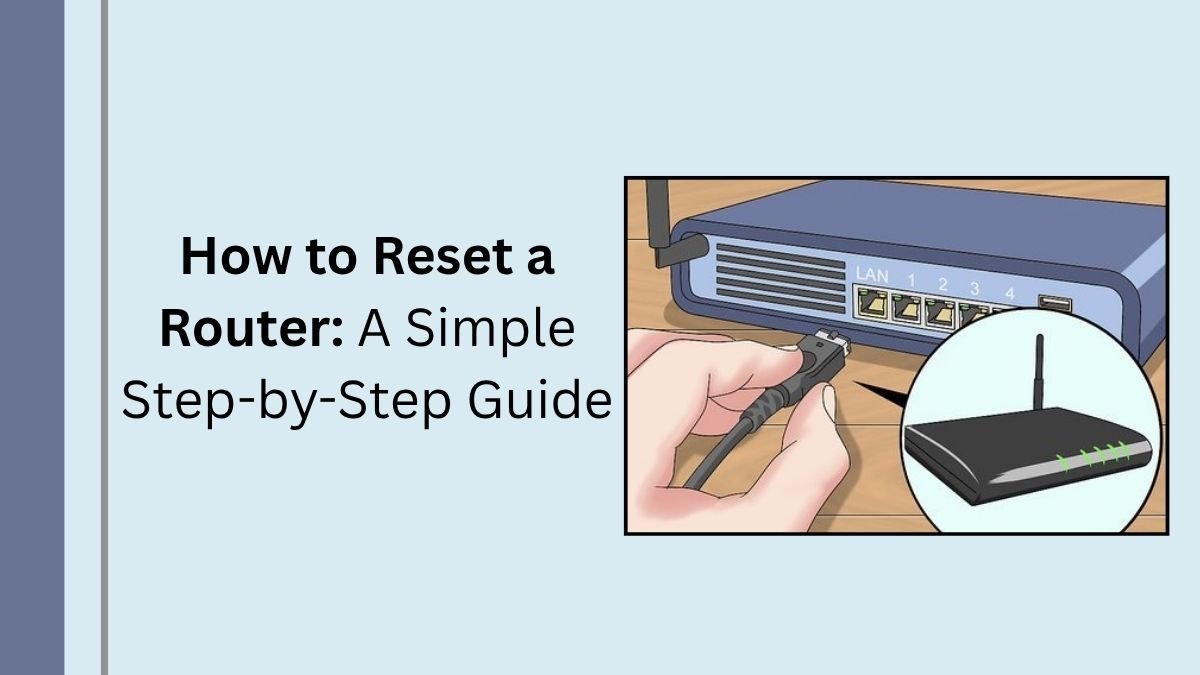
If your internet connection keeps dropping, your router is behaving strangely, or you’ve forgotten its administrator password, you may need to reset your router. But there’s an important distinction between restarting a router and performing a factory reset. A restart is usually a quick troubleshooting step, while a factory reset erases your custom settings and returns the router to its default configuration.
This guide explains how to reset a router safely, when you should use each method, what happens to your Wi-Fi settings, and what to do after the reset. The exact button location and reset procedure can vary by manufacturer and model, so when in doubt, check the documentation for your specific router.
Restart vs. Reset: What’s the Difference?
Before pressing a reset button, make sure you know which type of reset you actually need.
Restarting or rebooting a router
A restart simply turns the router off and back on. It doesn’t normally erase your Wi-Fi name, password, or other custom settings.
Restarting can help when:
- Your internet suddenly stops working.
- Wi-Fi becomes unusually slow.
- Devices won’t connect even though the router appears powered on.
- The router has been running continuously for a long time.
- A temporary network problem needs to be cleared.
Google’s Android support guidance recommends unplugging a home router, waiting about 30 seconds, and plugging it back in when troubleshooting Wi-Fi connection problems.
Factory resetting a router
A factory reset is much more drastic. It returns the router to its factory-default configuration and can erase settings you’ve changed.
Depending on the router, these settings may include:
- Wi-Fi network name
- Wi-Fi password
- Administrator password
- Guest network settings
- Port forwarding rules
- Custom DNS settings
- WAN or internet connection settings
- Parental controls
- Other customized network settings
For example, Linksys states that a factory reset erases custom configurations and requires the router to be configured again afterward.
If you only want to fix a temporary internet problem, try restarting the router first.
When Should You Reset Your Router?
A factory reset can make sense when normal troubleshooting hasn’t solved the problem or when you need to start the configuration from scratch.
Common situations include:
- You’ve forgotten the router’s administrator password.
- The router’s configuration has become corrupted or difficult to troubleshoot.
- You’re preparing the router for a fresh setup.
- You’re giving the router to another person.
- You’ve changed many settings and want to return to the defaults.
- The manufacturer recommends a factory reset for a particular problem.
A reset isn’t always the answer. If your internet provider is experiencing an outage, for example, resetting your router won’t fix the provider’s network.
How to Restart a Router Safely
If your main goal is simply to get the internet working again, start with a restart.
Step 1: Save anything important
Make sure downloads, online work, video calls, or other network-dependent activities are finished. Your devices will temporarily lose their internet connection.
Step 2: Turn off the router
If your router has a power switch, turn it off. Otherwise, unplug the router’s power adapter from the electrical outlet.
Step 3: Wait about 30 seconds
Leave the router disconnected for around 30 seconds. This gives the device time to power down completely.
Step 4: Plug it back in
Reconnect the power adapter and turn the router on if it has a power switch.
Step 5: Wait for the router to reconnect
Give the router several minutes to complete its startup process. The indicator lights may blink or change during this period.
Step 6: Test your connection
Connect your phone, computer, or another device to Wi-Fi and open a website.
If the connection works again, you probably don’t need a factory reset.
How to Reset a Router to Factory Settings
If you specifically need to reset your router to its factory defaults, the process usually involves a small reset button.
The exact procedure varies between models, so don’t assume every router uses the same reset time.
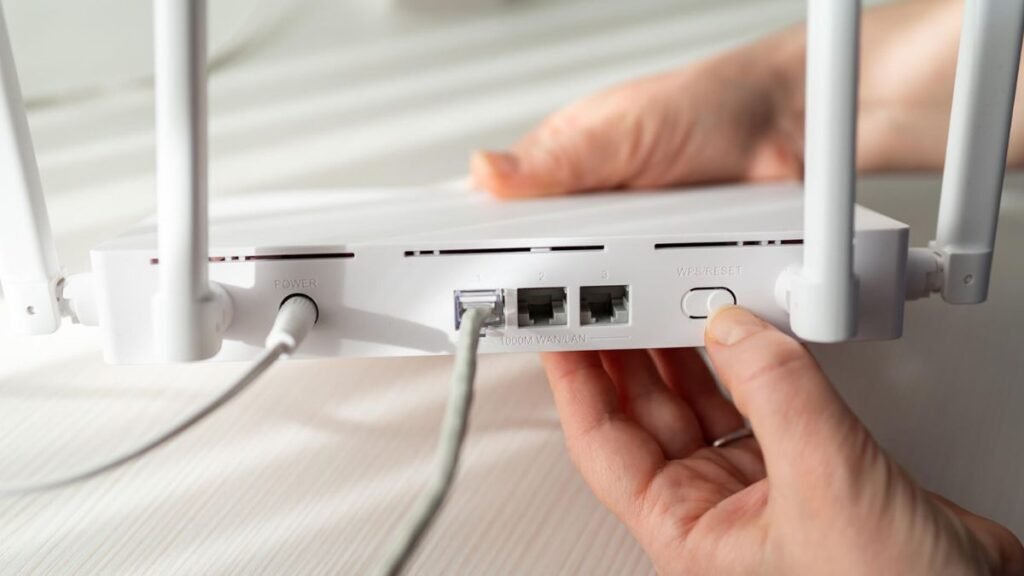
Step 1: Find the reset button
Look around the back, bottom, or side of the router for a button labeled Reset.
Some manufacturers place the button inside a small recessed hole to prevent accidental presses.
Step 2: Keep the router powered on
For many routers, the physical reset procedure is performed while the device is powered on. Linksys, for example, instructs users to press and hold the reset button for about 10 seconds on supported devices.
However, the required time differs between models.
Step 3: Press and hold the reset button
Use a suitable object, such as the end of a paper clip, if the button is recessed.
Hold the button until the router’s indicator lights show that the reset process has started.
Don’t rely on a generic 10-second rule for every router. Check your manufacturer’s instructions because some devices require a different duration.
For example, Google specifies different reset-button procedures across its Google Wifi and Nest Wifi products, with some devices requiring approximately 10 or 12 seconds.
Step 4: Release the button
Once the router indicates that the reset has started, release the button.
Don’t repeatedly press it or unplug the router unless the manufacturer’s instructions specifically tell you to do so.
Step 5: Wait for the reset to finish
A factory reset can take several minutes. Some devices may restart automatically during the process.
Google notes that certain Google Wifi and Nest Wifi factory resets can take up to 10 minutes and warns users not to disconnect power while the reset is taking place.
Step 6: Set up the router again
After the reset, your router will generally behave as though it has just been taken out of the box.
You’ll need to follow the manufacturer’s setup process and configure your network again.
What Happens After You Reset a Router?
A factory reset doesn’t simply “refresh” the router. It removes the configuration you’ve created.
Afterward, you may need to:
- Create or restore a Wi-Fi network name.
- Set a new Wi-Fi password.
- Change the administrator password.
- Configure the internet/WAN connection.
- Reconnect devices.
- Reconfigure guest Wi-Fi.
- Recreate port forwarding rules.
- Reconfigure parental controls.
- Restore other custom network settings.
Google specifically recommends recording important custom settings before a factory reset, including network information, guest-network settings, port forwarding, and WAN settings.
What If You Forgot Your Wi-Fi Password?
If you forgot the Wi-Fi password but can still access the router’s administrator interface or a router-management app, a factory reset may not be necessary.
Check whether your router allows you to view or change the wireless password through its administration settings.
If you cannot access the router and have also forgotten its administrator credentials, a factory reset may be one way to regain access. However, you’ll then have to configure the router again.
This is another reason to keep your network information somewhere secure.
What If the Internet Still Doesn’t Work After Resetting?
A successful router reset doesn’t guarantee that your internet connection will immediately work.
Check the following:
Check the modem connection
If you use a separate modem and router, make sure the Ethernet cable between them is firmly connected.
Check the cables
Inspect the power and Ethernet cables for loose connections or obvious damage.
Check your internet provider
Your ISP may be experiencing an outage or account-related problem. In that situation, resetting your router won’t solve the underlying issue.
Complete the router setup
After a factory reset, some routers require you to complete an initial setup before internet access becomes available.
Check the indicator lights
Router lights vary by manufacturer, so consult the manual for your model. An unusual light pattern can provide clues about power, Wi-Fi, or WAN connectivity.
Google’s support documentation, for example, explains that different LED patterns can indicate network errors, factory resetting, or readiness for setup on its Wifi products.
How to Reset a Router Without the Reset Button
Many modern routers provide another option: resetting through a web-based administration page or mobile application.
The exact menus depend on the manufacturer.
A typical process may look like this:
- Connect to the router’s network.
- Open the router’s administration interface or management app.
- Sign in with administrator credentials.
- Open the system, administration, troubleshooting, or settings section.
- Find the restart or factory-reset option.
- Confirm the action.
- Wait for the router to restart or reset.
Some manufacturers offer separate options for rebooting and restoring factory defaults. Linksys, for example, documents both functions through its web interface.
Be careful when selecting the option. Restart, reboot, and factory reset are not necessarily the same thing.
Common Mistakes to Avoid
Resetting a router is relatively simple, but a few mistakes can create unnecessary problems.
1. Factory resetting when a restart would work
If the problem is temporary, try restarting first. A factory reset can erase useful configuration information.
2. Forgetting your ISP settings
Some internet connections require specific settings or credentials. If your router needs them after a reset, you may need information from your internet provider.
3. Not recording custom settings
If you’ve configured port forwarding, a guest network, custom DNS, or other advanced features, record the important details before resetting.
4. Unplugging the router during a reset
Don’t interrupt a factory reset unless the manufacturer’s instructions specifically tell you to do so.
5. Assuming every router resets the same way
Reset-button locations, holding times, LED behavior, and setup procedures differ between manufacturers and models.
Tips for a Smoother Router Reset
Before performing a factory reset, take a few minutes to prepare.
Write down your current network details. Record anything you’ll need to recreate the configuration.
Find your router model number. The model information is usually printed on a label on the router.
Keep the manufacturer’s instructions available. This is especially useful if the reset process or setup procedure is model-specific.
Have your internet-provider information available. You may need account or connection details during the setup process.
Plan for temporary downtime. Devices connected through the router will lose network access during the reset.
Also Read: How to Get Rid of Fruit Flies 2026: A Practical Step-by-Step Guide
Conclusion
Knowing how to reset a router can help when you’re troubleshooting network problems, changing configurations, or preparing a device for a fresh setup. The most important thing is to distinguish a simple restart from a factory reset.
If your connection is temporarily misbehaving, restart the router first. If you need to erase the configuration and return the device to its default state, use the manufacturer’s factory-reset procedure. Before doing that, save important settings and make sure you have the information needed to configure the router again.
When the reset procedure differs by model, always follow the instructions provided for your specific router. That small precaution can prevent the loss of settings you may need later.
Frequently Asked Questions
Does resetting a router delete the Wi-Fi password?
A factory reset normally removes your customized Wi-Fi configuration, so the network name and password may return to the manufacturer’s default settings. The exact behavior depends on the router. Check the device label or manufacturer’s instructions for the default credentials.
Is restarting a router the same as resetting it?
No. Restarting or rebooting normally turns the router off and back on without deleting your configuration. A factory reset restores default settings and can erase your customized configuration.
How long should I hold the router reset button?
There isn’t one universal time. Some routers use around 10 seconds, while others require a different duration. For example, Google documents 10- and 12-second procedures for different Wifi devices.
Use the instructions for your exact router model.
Will resetting my router disconnect all devices?
During a factory reset, devices connected to the router will lose their network connection. Afterward, devices may need to reconnect using the newly configured Wi-Fi network.
Can I reset my router if I don’t have internet access?
Usually, yes. A physical factory reset generally doesn’t require an active internet connection. However, you’ll need to complete the router’s setup afterward, and some features may require internet access.
Why is my router still not working after a factory reset?
The issue could be related to the modem, Ethernet cable, ISP, power supply, router hardware, or configuration. If the router was reset successfully but cannot establish an internet connection, check the manufacturer’s troubleshooting guidance and contact your ISP if necessary.
Should I reset my router regularly?
Usually, there’s no need to factory reset a router on a regular schedule. A restart can be useful for troubleshooting, but factory resetting should generally be reserved for situations where you actually need to erase the configuration or start over.